The GCARC club has a pre-configured secondary channel for private club communications. You’re joining this existing channel (not creating a new one—do not manually add or create a “GCARC” channel, as that would create a duplicate with a mismatched encryption key and prevent you from connecting to the group).
Channels are shared via QR codes (or links), which automatically apply the correct name and encryption key (PSK).
Important Notes:
- You must join the channel individually on each of your Meshtastic devices. Settings are stored on the radio itself, not globally in the app.
- If you have multiple nodes, repeat the process for each one by first connecting the app to that specific device.
Step-by-Step Instructions (Direct QR Scan in Phone Camera)
This method uses your phone’s built-in camera to scan the QR code, which then opens directly in the Meshtastic app for confirmation.
- Open the Meshtastic App on your phone (Android or iOS).
- Connect to the Specific Device: Go to the Nodes tab and ensure you’re paired and actively connected via Bluetooth to the exact radio you want to update. (Switch connections if needed for multiple devices.)
- Scan the QR Code with Your Phone’s Camera: Open your phone’s default camera app (or any QR scanner). Point it at the official GCARC channel QR code below. The phone will detect the QR code and show a notification or link (often “Open in Meshtastic” or a meshtastic:// URL).
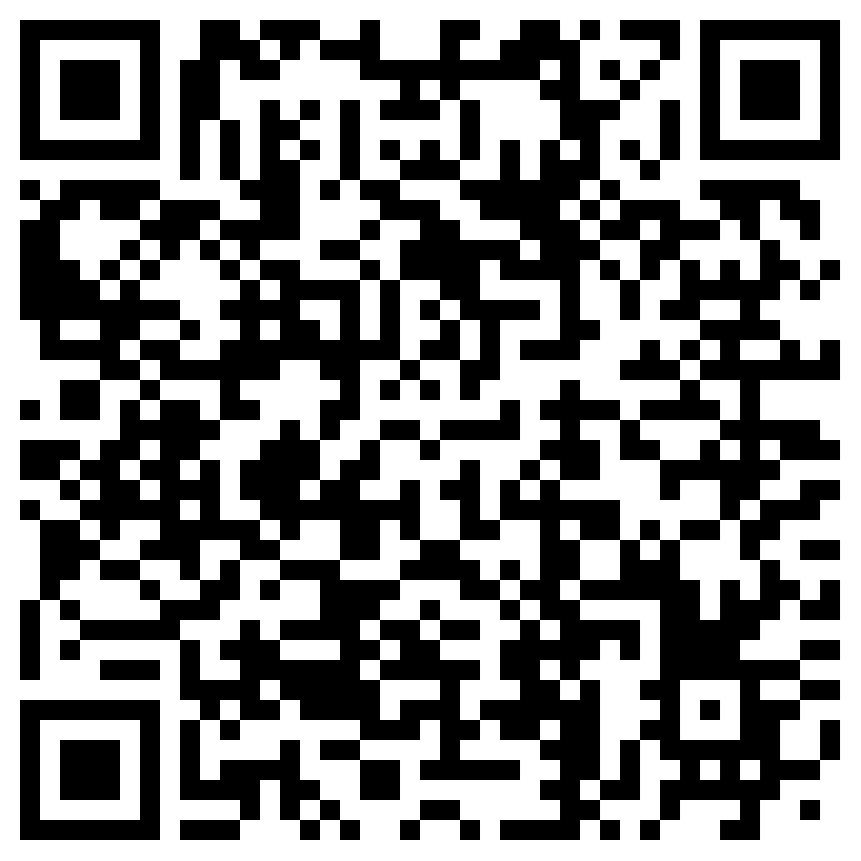
- Confirm and Add in the Meshtastic App: Tap the notification/link to open it in the Meshtastic app. You’ll see a confirmation page with the channel details. Tap “Save” (or confirm) to join the channel. The GCARC channel will now appear in your Channels list (as a secondary channel below the primary/default one). Don’t hit “Save” multiple times or you’ll wind up duplicating the channel in your device.
- Once joined, messages sent to the GCARC channel will appear automatically in your Messages view when that channel is selected. You can easily switch between the public/default channel and GCARC for different conversations.
If the link doesn’t open in the app or the channel doesn’t appear, ensure the Meshtastic app is installed/updated, your Bluetooth connection is active, and try again. And once you’ve done this successfully send a message out to other users on that channel letting everyone know that you’re set!
Welcome to the GCARC channel—see you on the mesh!